
In short: Windows can compress files into a ZIP, but it cannot put a strong password on them. If you want to send private documents, today you need a separate program, such as 7-Zip, which is free. We explain why this happens, how to do it step by step, and what we would like Microsoft to change.
An everyday situation
Imagine you have to email your payslip, a copy of your national ID card (your DNI), or the results of a medical test. The usual thing is to attach the files and send them. But an email can end up in the wrong place: a mistyped address, a hacked account, a forward you did not mean to send.
If those files are protected with a strong password, even if they fall into other hands, nobody will be able to open them without that password. That is what encryption does.
What does "encrypt" mean?
To encrypt is to turn a file into unreadable content that only returns to its normal form with the correct password. Without it, anyone who opens the file will only see meaningless data.
Today the most widely used and recommended standard is called AES-256. You do not need to know how it works on the inside: AES-256 is a modern, widely used encryption method, considered secure today.
What is compression for, and what is encryption for?
They are two different things, even though they often go together.
Compression is useful so that files take up less space and travel together in a single, tidy package. It is practical, but it does not protect anything: anyone who receives an ordinary ZIP can open it and see everything inside.
Encryption is what actually protects you: only someone who has the password can read the contents.
Encryption protects you in exactly the everyday slip-ups we all make:
- You forward the email, by mistake, to the wrong person.
- Someone gets into your email account.
- You lose the phone or the laptop where the file was stored.
- The file sits for years in your inbox or in the cloud, and nobody remembers to delete it.
In all of those cases, if the file is encrypted, whoever finds it will not be able to read anything without the password.
A password-protected ZIP (or 7z) does both things at once: it compresses and it encrypts. But not all of them protect you equally: their strength depends on the method used (the old ZipCrypto is weak; AES-256 is strong) and on how good the password is.
What Windows does today... and what it does not
To be fair: Windows does use AES-256. It does so in BitLocker, which protects your computer's entire drive, and in EFS, which protects files on your own machine. But that looks after your files while they are on your PC. It does not help you protect them when you send them to someone else.
To send a file, the usual approach is a compressed archive (ZIP, 7z or RAR). And that is where Windows File Explorer falls short:
- It can open ZIP files protected with the old method called ZipCrypto. The problem is that ZipCrypto is an old method with known weaknesses: the official ZIP format specification considers it weak by today's standards. It is more of a decorative lock than real protection.
- It cannot open ZIP files protected with AES-256, or password-protected 7z or RAR files.
- It cannot create any password-protected compressed archive. Not a weak one, and not a strong one.
Windows 11 has improved a lot in this area: since 2023 it can open 7z and RAR files, and since version 24H2 (2024) it can also create 7z and TAR files. Version 25H2 made decompression faster. But none of those updates added the option to set a password. Microsoft's own help page says so: Windows "does not support operations with encrypted compressed files" and suggests using programs such as 7-Zip or WinRAR. On Windows 10 the situation is even more limited: it does not open 7z or RAR, and with ZIP files the same limits apply.
A quick comparison
| Method | Does Windows open it? | Does Windows create it? | Is it secure? |
|---|---|---|---|
| ZIP with no password | Yes | Yes | It does not protect anything |
| ZIP with ZipCrypto | Yes | No | No: it can be broken |
| ZIP with AES-256 | No | No | Yes, with a good password |
| 7z with AES-256 | No | No | Yes, with a good password |
| RAR with a password | No | No | Yes, with a good password |
Step by step: how to protect a file with 7-Zip
7-Zip is a free, open-source program that works on Windows 11 and 10. You can use it at home or at work without paying or signing up.
- Download it only from its official site: www.7-zip.org. (The latest version, 26.06, is dated 6 November 2026.) Avoid pages that offer "quick downloads": they sometimes hide unwanted software.
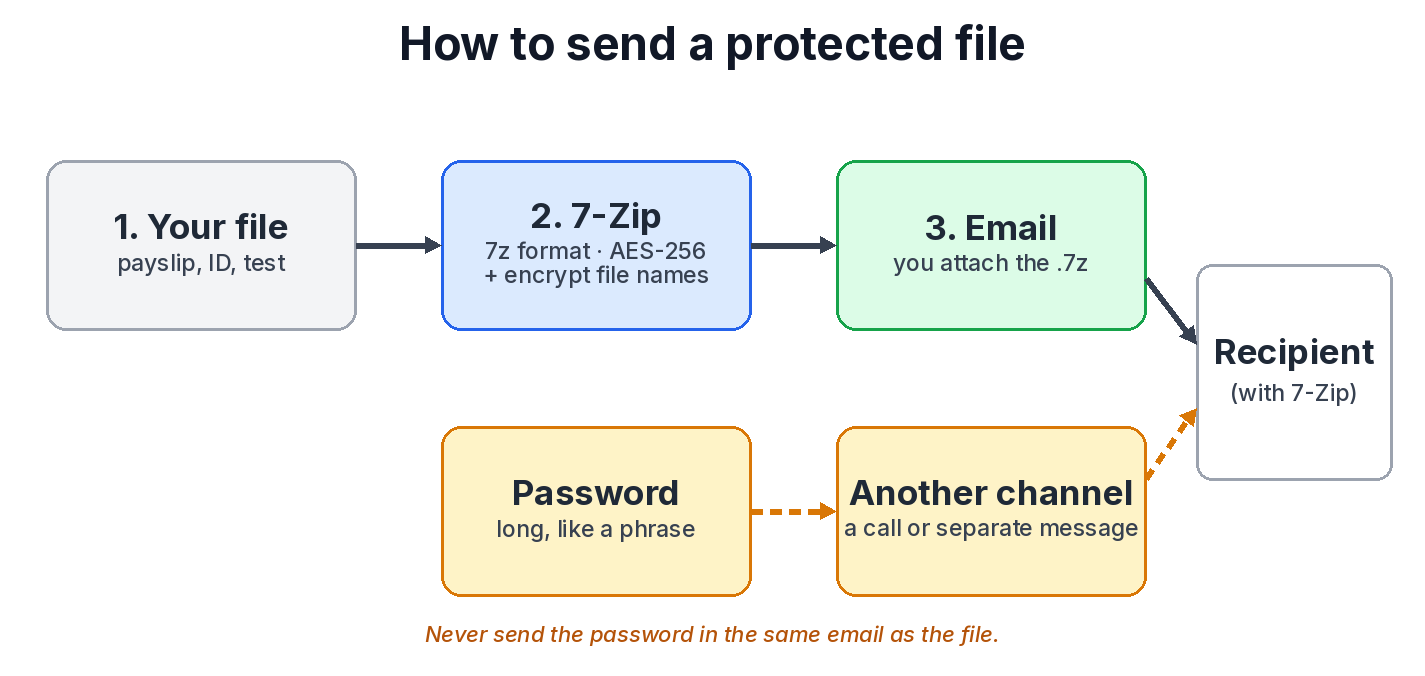
- Install it. Then, in File Explorer, right-click the file or folder you want to protect. In Windows 11 you may first need to choose "Show more options" (in Spanish, Mostrar más opciones). Choose 7-Zip → Add to archive… (in Spanish, Agregar al archivo comprimido…).
- Under Archive format, choose 7z. (In Spanish, Formato del archivo comprimido.)
- In the Encryption section (Cifrado), type your password in Enter password and type it again in Reenter password (in Spanish, Ingresar contraseña and Reingresar contraseña). With the 7z format, the encryption method is always AES-256.
- Tick the box Encrypt file names (Cifrar nombres de archivo). That way nobody can even see what the documents inside are called: a name such as "resultados_laboratorio_mayo.pdf" already says too much.
- Click OK (Aceptar). You will have a new file ending in .7z. That is the one you attach to the email.
If you choose ZIP instead of 7z, check that the Encryption method (Método de cifrado) says AES-256 and not ZipCrypto.
Two golden rules:
- Use a strong password. Long is better than complicated: a phrase of four or five unrelated words, for example "tortuga-lampara-Cusco-violin-27", is much harder to guess than "Juan1985". 7-Zip itself advises using only letters without accents or ñ, numbers, and characters such as ! or #.
- Send the password by another route. Never in the same email as the file. Read it out over the phone or send it in a separate message. If someone intercepts the email, they are left with a file they cannot open.
One detail: the person who receives the file will also need 7-Zip or another compatible program to open it, because, as we have seen, Windows on its own cannot.
What we would like to see in Windows
Microsoft has been adding formats to File Explorer, and that is good news. But today, protecting a document before you send it is as basic as putting a lock on the door. Having to search for, download and install a separate program to do it is an unnecessary barrier, especially for someone who is not an expert and who risks downloading something from a fake site.
On top of that, the technical foundation is already there: the open-source library Windows uses to handle these formats (libarchive) is already able to create ZIP files with AES-256 encryption. That is why this looks more like a product decision than a technical limit. We are not the only ones who have noticed: in November 2026, the specialist site How-To Geek was still describing password protection on Windows as something that depends on external programs. To date we have not found any announcement from Microsoft about this feature. We hope it arrives soon: a simple "Compress with password (AES-256)" option on the right-click menu would help millions of people take better care of their data.
In brief
- Windows protects your drive with AES-256 (BitLocker), but it cannot put a strong password on a file you are about to send.
- The only password-protected ZIP that Windows can open uses ZipCrypto, a weak method that is best not used.
- With 7-Zip (free, from www.7-zip.org) you can create a 7z archive with AES-256 and encrypted file names in a minute.
- Use a long password and send it through another channel, never in the same email.
Sources
Listed from newest to oldest.
- How-To Geek, "3 things 7-Zip can do that Windows 11's File Explorer still can't" (Diana Todea), 10 November 2026: https://www.howtogeek.com/3-things-7-zip-can-do-that-windows-11s-file-explorer-still-cant/
- 7-Zip, official site (version 26.06, published 6 November 2026): https://www.7-zip.org/ · version history: https://www.7-zip.org/history.txt
- How-To Geek, "You're using the wrong app to open ZIP files on Windows" (Sydney Butler), 22 April 2026: https://www.howtogeek.com/youre-using-the-wrong-app-to-open-zip-files-on-windows/
- Microsoft Support, "Compress and decompress files" (no visible date; accessed November 2026): https://support.microsoft.com/en-us/windows/experience/storage-filemanagement/zip-and-unzip-files
- Microsoft Learn, what's new in Windows 11 version 25H2 (3 October 2025): https://learn.microsoft.com/en-us/windows/whats-new/whats-new-windows-11-version-25h2
- bsdtar (libarchive) manual, Debian (accessed November 2026): https://manpages.debian.org/trixie/libarchive-tools/bsdtar.1.en.html
- 7-Zip documentation, "Add to Archive" window (copy on documentation.help; accessed November 2026): https://documentation.help/7-Zip/add.htm
For the background:
- Windows Central, what's new in File Explorer in Windows 11 24H2, 19 September 2024: https://www.windowscentral.com/software-apps/windows-11/whats-new-on-file-explorer-on-windows-11-2024-update-version-24h2
- Windows Insider Blog, builds 22621.2199 and 22631.2199, 18 August 2023: https://blogs.windows.com/windows-insider/2023/08/18/announcing-windows-11-insider-preview-build-22621-2199-and-22631-2199-beta-channel/
- PKWARE, ZIP format specification (APPNOTE 6.3.10, 1 November 2022), section 6.0.1: https://pkware.cachefly.net/webdocs/casestudies/APPNOTE.TXT
- NIST, FIPS 197, Advanced Encryption Standard (AES) (2001; accessed November 2026): https://csrc.nist.gov/pubs/fips/197/final